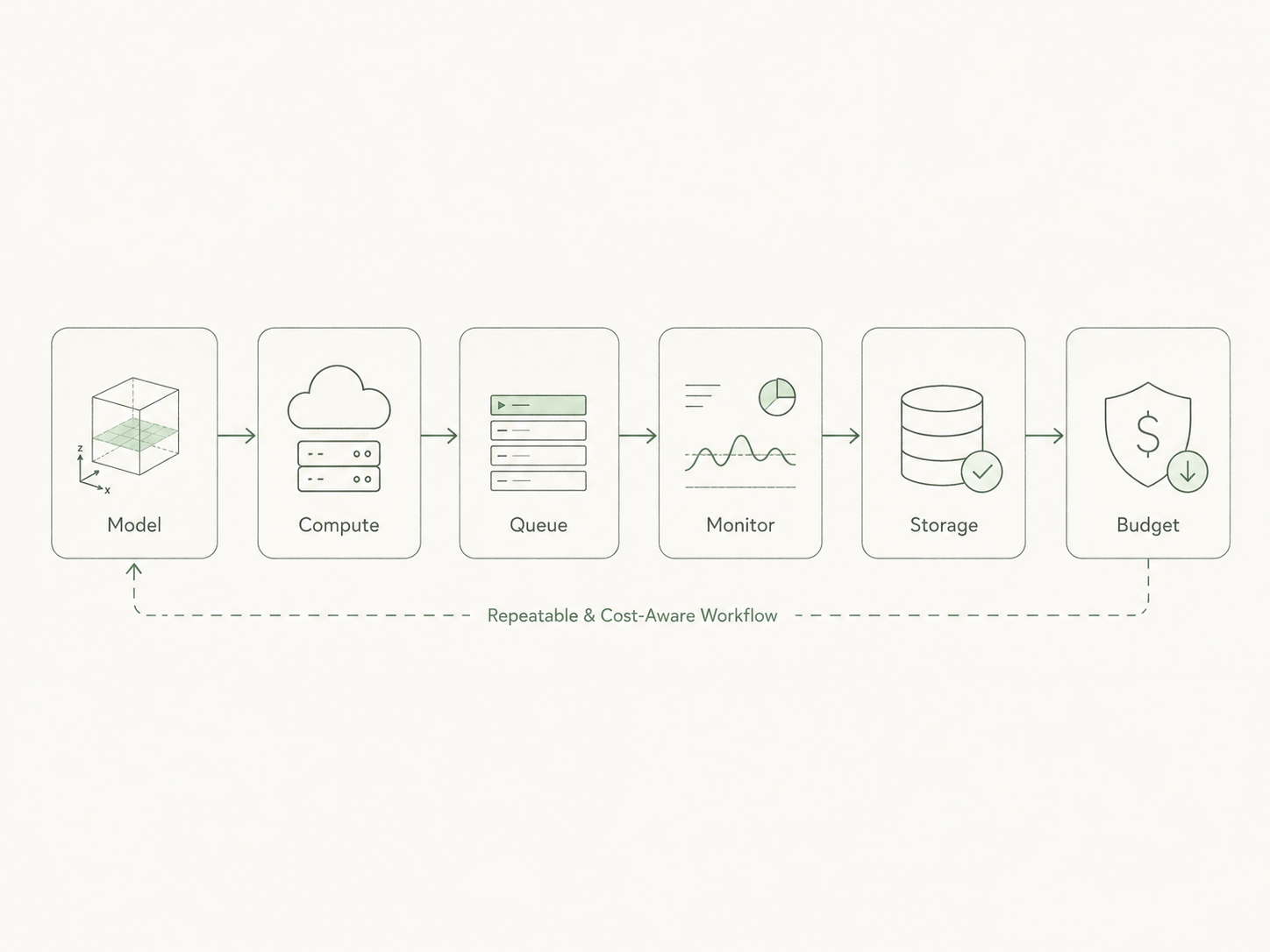
As I've been learning Google Cloud for my FEniCS simulations and synthetic data generation work, I've learned some critical lessons about cost management—some of them the hard way. I've heard horror stories of researchers accidentally burning through $1000+ before they even realized what happened. Here are the best practices I follow now to avoid costly mistakes.
Best Practices for Running Simulations on Google Cloud
1. Understanding Billing and Setting Up Multiple Alerts
This is probably the most important thing I learned: always set up billing alerts before you start any serious work.
What I do now:
I set up multiple budget alerts at different thresholds, not just one. Here's my approach:
- Alert 1: 25% of monthly budget
- Alert 2: 50% of monthly budget
- Alert 3: 75% of monthly budget
- Alert 4: 90% of monthly budget
- Alert 5: 100% of monthly budget
Critical setup requirements:
- Attach these alerts to an email address I actively check every day
- Use my primary email, not some secondary account I forget to check
- Enable notifications to multiple emails if working in a team
How to set up billing alerts:
- Go to Google Cloud Console → Billing → Budgets & alerts
- Click Create Budget
- Set your monthly budget limit
- Configure multiple alert thresholds
- Add email recipients
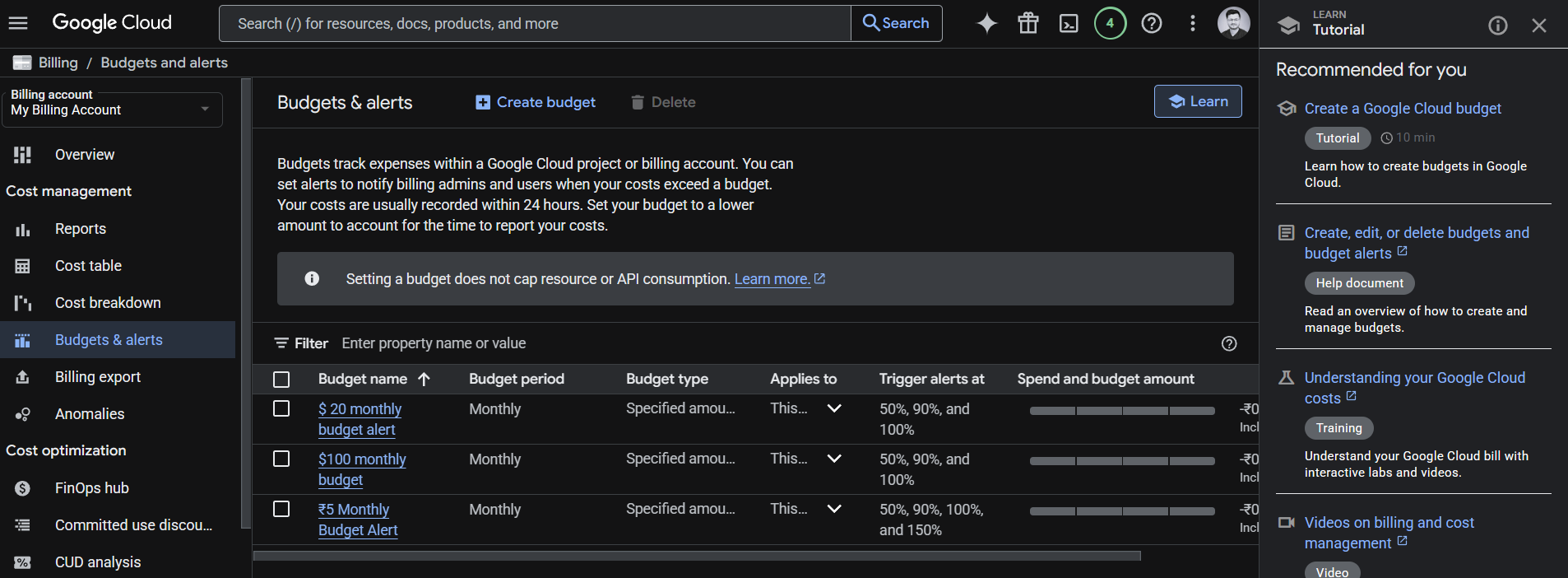
This multi-tier alert system gives me early warnings before costs spiral out of control. By the time I hit 50%, I'm already reviewing what's running and why.
2. ⚠️ CRITICAL: ALWAYS Stop or Shut Down VMs When Not Running
I cannot stress this enough—this is where most accidental costs happen.
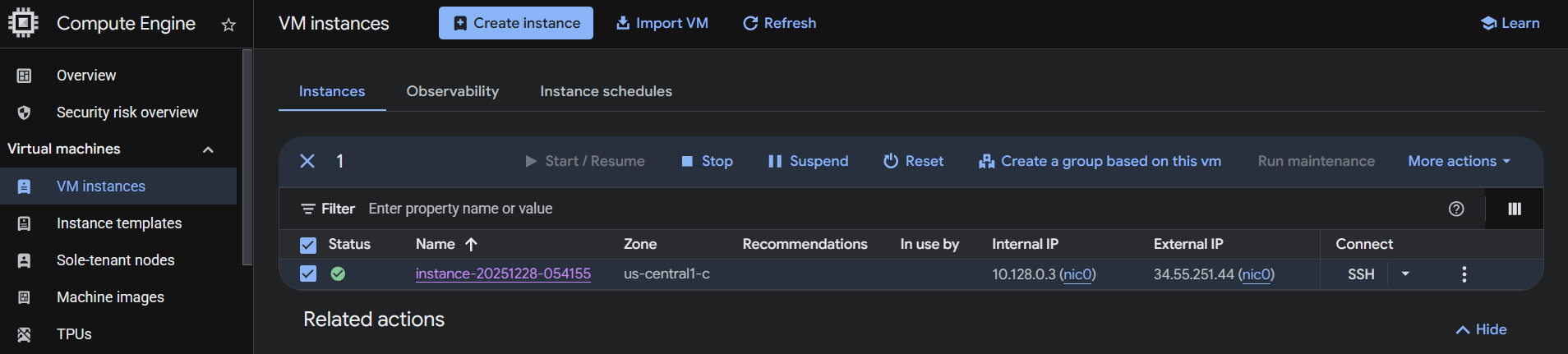
ALWAYS ALWAYS ALWAYS stop or shut down your Google Cloud VM when you are not actively using it.
Why this is absolutely critical:
- Running VMs charge you for CPU, memory and compute resources every single minute
- Even idle VMs sitting at the login prompt are costing you money
- A forgotten VM running for a week can easily cost $100-$500 depending on the configuration
- I've heard of cases where $1000+ disappeared before anyone noticed
My personal rules now:
- Stop the VM immediately after completing simulations
- Check VM status in the console before I log off for the day
- Never close my laptop assuming the VM stopped—I verify it in the console
- Set reminders on my phone if I'm running overnight simulations
The math that scared me straight:
A high-end VM (e.g., 32 vCPUs, 128 GB RAM) can cost:
- ~$1.50 per hour
- ~$36 per day if left running
- ~$1,080 per month if forgotten
Even a modest VM configuration can add up quickly. Storage costs for stopped VMs are minimal (maybe $1-5/month), but running compute costs are where the money disappears.
3. Right-Sizing Your VM: Don't Overpay for Configuration
When I first started, my instinct was to select the highest configuration thinking "more power = faster results." That's not always the smartest approach.
What I learned about choosing VM configurations:
Before starting a simulation:
- Estimate your memory requirements based on mesh size and problem complexity
- Test your simulation locally or on a small VM first to understand resource needs
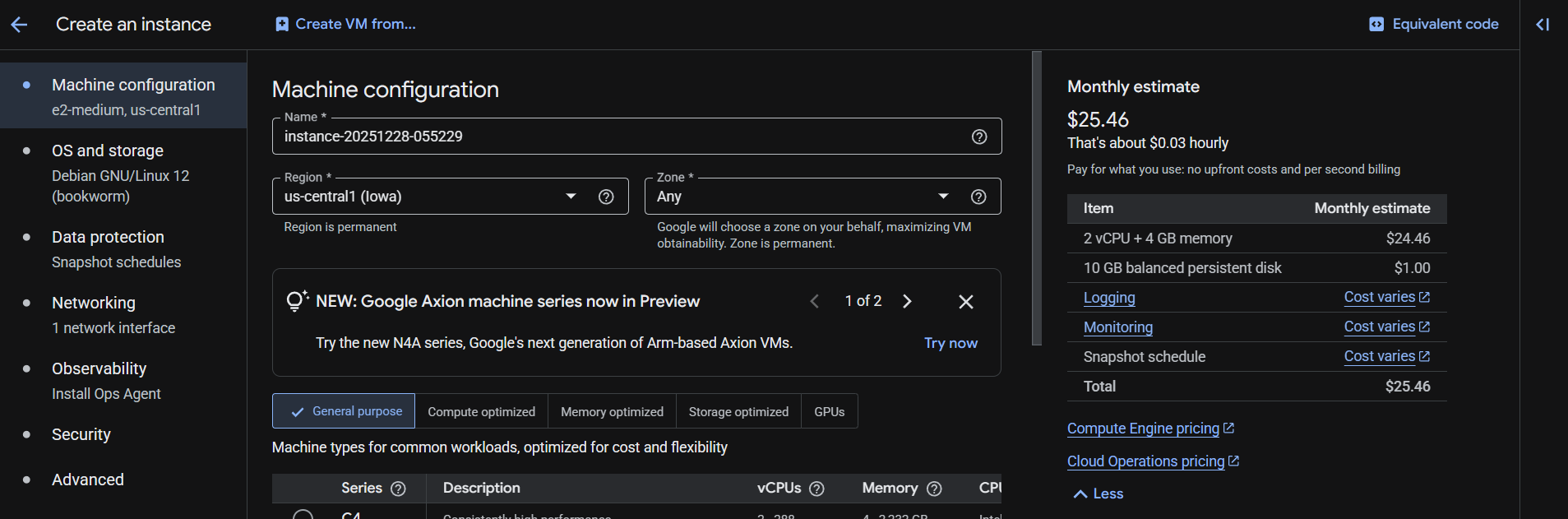
- Look at the hourly and monthly cost estimates that Google Cloud shows when selecting configurations
Google Cloud provides cost estimates right in the interface:
- When creating a VM, the right panel shows hourly and monthly costs
- ALWAYS ALWAYS ALWAYS check these estimates before clicking "Create"
4. Regular Console Check-ins: The Weekly Audit
Even with all the precautions, I've learned to do regular manual checks because things slip through the cracks.
My routine now:
Daily (when actively working):
- Check the VM instances page before signing off
- Verify that VMs I finished with are actually stopped
Weekly (even when not actively working):
- Log into Google Cloud Console
- Navigate to Compute Engine → VM instances
- Look for any instances that are running
- Check Billing → Reports to see spending trends
A brief 2-minute check once a week has saved me from several potential $100+ surprise bills.
6. Important Context: This Guide is for Compute Engine
Everything I've covered here is specifically focused on running simulations using Compute Engine VMs.
If you're using other Google Cloud services like:
- App Engine
- Cloud Functions
- Database services (Cloud SQL, Firestore, etc.)
- Kubernetes Engine
There will be additional cost considerations and best practices specific to those services. Each service has its own billing model and requires its own cost management checklist.
For my FEniCS simulation work, Compute Engine is the primary cost driver, so that's where I focus my attention.
Final Thoughts: Prevention is Worth Thousands of Dollars
The guidelines I've shared come from learning (and hearing about others' expensive mistakes). The $1000+ bills that some researchers have faced could have been completely avoided by:
- Checking the estimated costs before creating VMs (Google shows this right in the UI!)
- Setting up proper budget alerts with multiple thresholds
- Verifying VMs are stopped after each work session
- Right-sizing configurations instead of always going for maximum power
Cloud computing is incredibly powerful for large-scale simulations and synthetic data generation, but it requires a different mindset than working on a local machine. That local machine costs the same whether it's running or idle—cloud VMs do not.
Stay vigilant, set up your safeguards and always double-check before you leave. Your budget (and your advisor or funding source) will thank you.
Remember: The few minutes you spend on proper cost management can save you hundreds or thousands of dollars. Make it a habit, not an afterthought.
Mehul Bagaria
Entrepreneur and computational scientist working across engineering software, scientific machine learning and technical product development.